.png)
Live Vision Operation
Operating the real-time monitoring and analytics dashboard
The Live Vision dashboard provides real-time situational awareness by processing live streams from CCTV, IP cameras, or webcams.
Interface Overview
The interface is divided into three primary zones:
- Main Viewport: Displays the annotated video stream with bounding boxes and track IDs.
- Identification Feed: A sidebar showing thumbnails of recognized individuals.
- Analytics Overlay: Real-time stats including total person count and active track count.
Operating Steps
1. Select Camera Source
Select from the available RTSP streams or local webcams. The system will automatically attempt to reconnect if the stream is interrupted.
2. Configure Overlays
Toggle the visual information displayed on the stream:
- Show Bounding Boxes: Displays a rectangle around detected persons.
- Show Names/IDs: Labels persons with their database name or a temporary track ID.
- Show Landmarks: Displays facial keypoints (eyes, nose, mouth corners).
3. Manage Alerts
Set up automated triggers:
- Known Individual: Alert when a registered person is detected.
- Unknown Person: Alert when a person not in the database is found.
- Zone Intrusion: (If configured) Alert when someone enters a specific area.
Overwatch Architectural Design
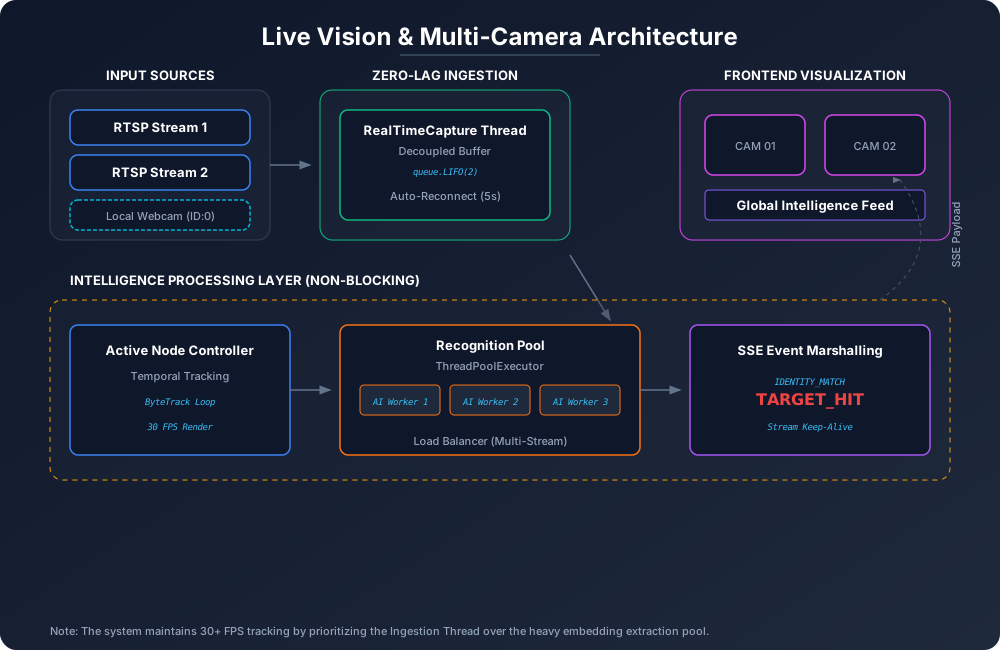
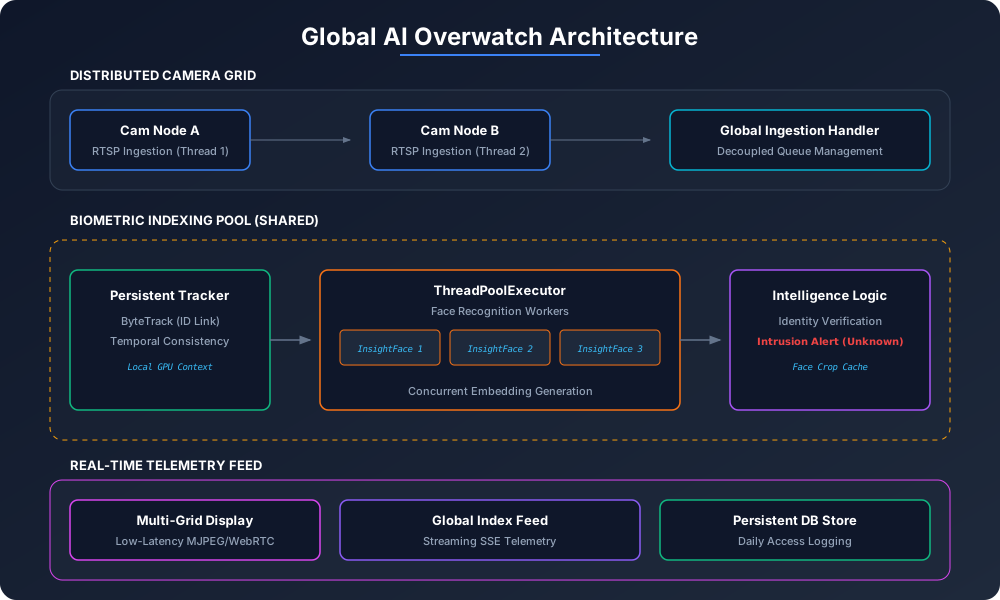
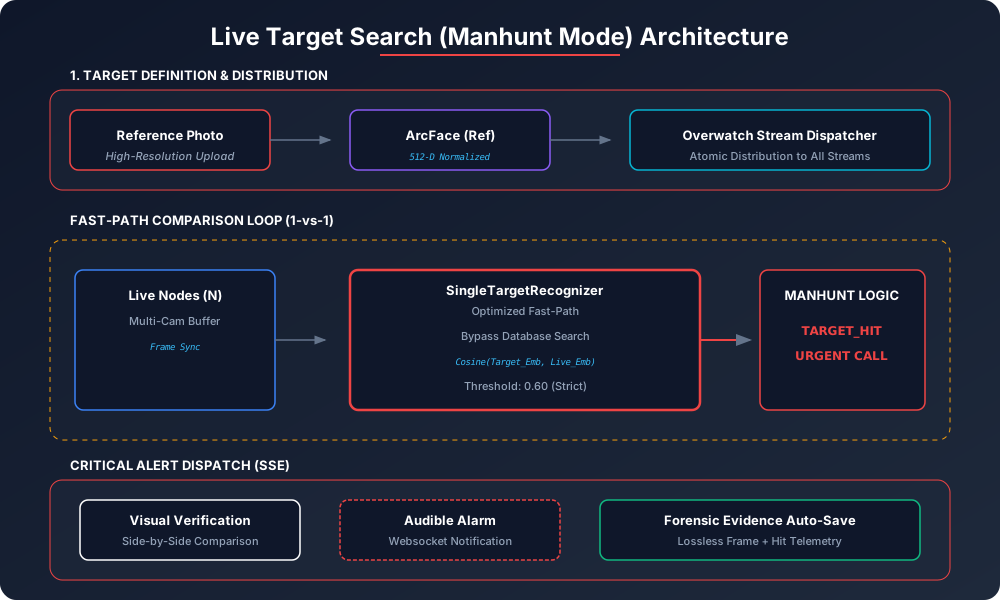
The following diagrams illustrates the concurrent multi-camera processing model, the non-blocking AI executor pool, and the global indexing pipeline used in Overwatch mode.
Basic Architecture
Global AI Overwatch Architecture
Live Target Search (Manhunt Mode)
Performance Optimization
- Hardware Acceleration: Ensure GPU acceleration (CUDA) is enabled for high-FPS processing.
- Skip Frames: If the CPU load is high, increase the frame skipping interval to maintain real-time responsiveness.