.png)
Face Recognition
Real-time face recognition from camera, images, and video
The recognition system processes input from cameras, images, or videos to identify enrolled persons in real-time.
Input Modes
| Mode | Description |
|---|---|
| Camera | Real-time recognition from webcam |
| Image | Single image analysis |
| Video | Video file processing |
Camera Mode
Real-time recognition from webcam with live display.
Keyboard Controls
| Key | Action |
|---|---|
ESC / Q | Quit |
S | Save screenshot |
R | Reload face database |
T | Toggle confidence display |
Display Information
The live view shows:
- Green boxes around recognized faces
- Red boxes around unknown faces
- Person name and confidence score
- FPS counter (30-frame average)
Image Mode
Analyze a single image for faces.
Output includes:
- Number of faces detected
- Person name for each recognized face
- Confidence score for each match
Video Mode
Process video files for face recognition.
Controls during playback:
| Key | Action |
|---|---|
ESC / Q | Stop processing |
SPACE | Pause/Resume |
Recognition Parameters
Similarity Threshold
Adjust the matching threshold to balance precision and recall.
| Threshold | Use Case |
|---|---|
| 0.35 | Maximum recall, more false positives |
| 0.45 | Balanced (default) |
| 0.55 | High precision, may miss some |
| 0.65 | Very strict, minimal false positives |
GPU Acceleration
Enable CUDA for faster processing.
Requirements:
- NVIDIA GPU with CUDA support
- onnxruntime-gpu installed
Technical Workflow Diagram
The following diagram illustrates the complete logic for identifying a person's face within the application:
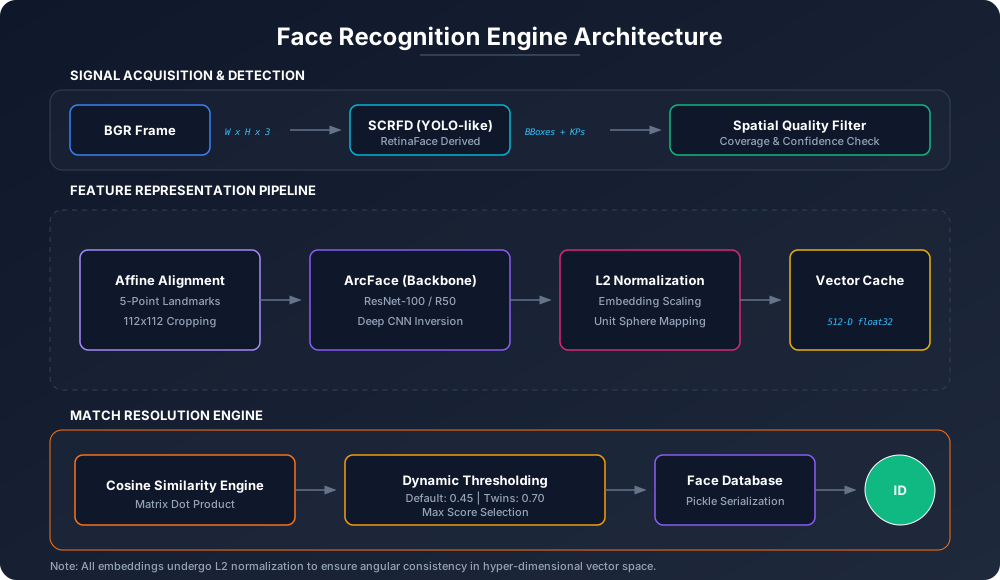
1. Frame Capture
Video frames are captured from the source (camera, image, or video file).
2. Face Detection
InsightFace SCRFD detects all faces. Each face includes:
- Bounding box coordinates
- Detection confidence
- 512-d embedding vector
3. Embedding Comparison
Each detected face is compared against the enrolled database using cosine similarity.
4. Threshold Check
If the similarity score meets the threshold, the face is identified; otherwise marked as unknown.
Performance Optimization
Frame Rate
Default camera settings:
- Resolution: 1280x720
- FPS: 30
For faster processing on slower hardware:
- Reduce resolution
- Skip frames using video processor
Detection Size
The model uses 640x640 input size. Larger images are automatically resized internally.
Headless Mode
Run without GUI for server deployments. Output is printed to console only.
Database Reload
If you enroll new faces while recognition is running:
- Press
Rto reload the database - New persons will be recognized immediately
Or restart to load updated embeddings.
Result Data
Each recognition result contains:
| Field | Description |
|---|---|
| Name | Person name or "Unknown" |
| Confidence | Similarity score (0-1) |
| Bounding Box | Face location coordinates |
| Is Known | Whether face was matched |
Visualization
Bounding Box Colors
| Status | Color |
|---|---|
| Known person | Green |
| Unknown | Red |
Label Format
Shows name and confidence score when enabled.
Troubleshooting
No faces detected
- Ensure adequate lighting
- Face should be at least 50 pixels
- Verify camera is working properly
Low confidence scores
- Re-enroll with more/better images
- Check lighting conditions match enrollment
- Try lowering threshold slightly
Slow performance
- Enable GPU if available
- Reduce camera resolution
- Check CPU usage for other processes
Wrong identifications
- Increase threshold (e.g., 0.55)
- Re-enroll with diverse angles/lighting
- Ensure enrollment images are high quality